Topaz Video Review

7.7/10

Desktop AI software for upscaling, denoising, stabilizing, and smoothing video footage.

Review updated May 2026 By The AI Way Editorial Tested 141+ tools across the site 5 min read
Topaz Labs Commercial Rights Mac App Video Editing Video Effects Windows App Paid from $41.00/mo

Our Verdict

Topaz Video is worth opening when you already have footage that is noisy, soft, shaky, or trapped at old resolutions and the real job is salvage, not creation. Its edge is that it focuses on post-production repair work with many enhancement models and local rendering, but the price and hardware demands make it a poor fit for casual cleanup or lightweight laptops. In other words, it earns its keep when the clip is already in trouble, not when you just want every export to look a little nicer.

Try it
Paid product. Starts at $41.00 USD.
open_in_new Visit Topaz Video
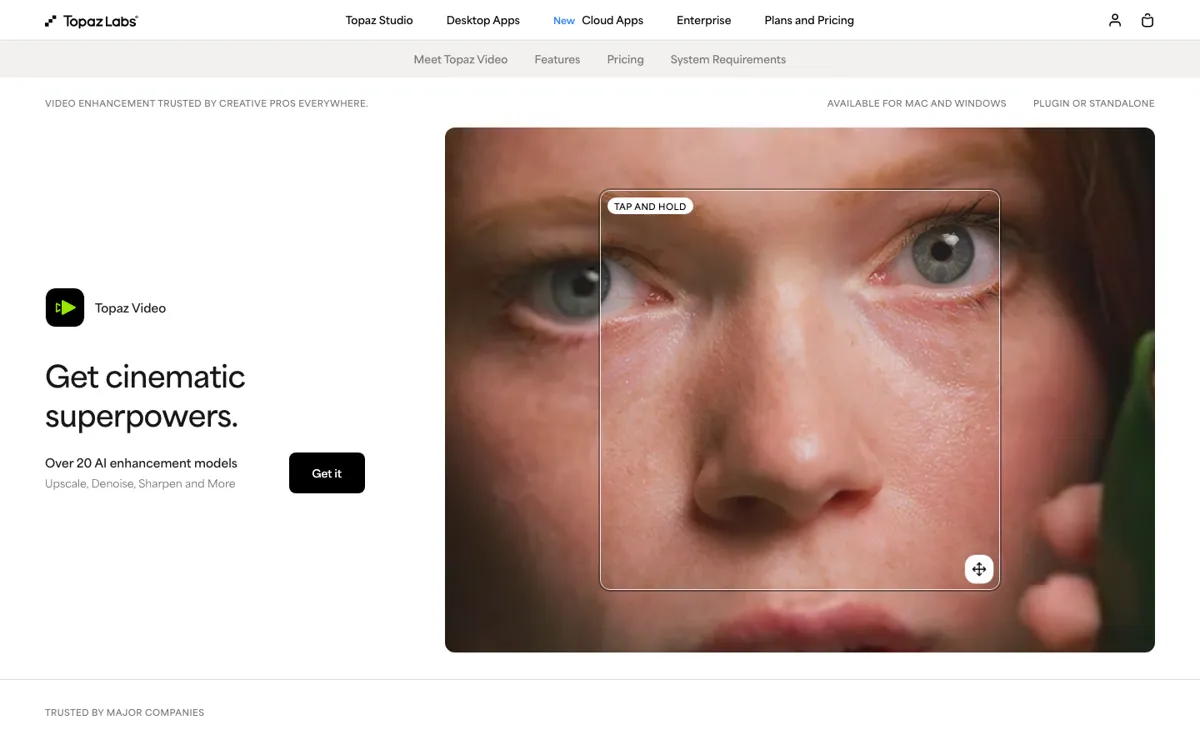
Official Website Snapshot Visit Site ↗

check_circle Pros

  • It goes after concrete repair jobs, like denoising dark footage, restoring old archive transfers, and smoothing motion, instead of pretending one AI button fixes every video problem.
  • Local rendering matters if you handle unreleased client footage or sensitive internal material and do not want uploads to be the default path.
  • The standalone-plus-plugin setup makes more sense for editors who already cut in tools like After Effects or DaVinci Resolve and only need an enhancement pass at the end.

cancel Cons

  • The official docs make clear that support is narrow compared with generic web tools: no Linux, no Intel Mac support, no Snapdragon support, and no virtual machine support.
  • The paid-only model means you cannot really test the core editing pass through a generous free tier before committing.
  • Community discussion suggests the gains are easiest to justify on damaged, archival, or low-resolution footage, not on every normal 1080p to 4K upscale job.

Should you use it?

Best for: Rescuing noisy, blurry, shaky, or old footage before a client delivery, archive handoff, or final export.

Skip it if: Skip it if your machine does not meet the desktop requirements, if you need Linux or Intel Mac support, or if most of your work is already clean footage where standard editor upscaling is good enough.

Is it worth the price?

Paid Starts at $41.00 USD

The subscription is easier to justify when enhancement quality is billable work or when you regularly save flawed footage that would otherwise be unusable. If you only occasionally upscale decent clips, the monthly cost will feel heavy fast because the product does not hide its pro-tool pricing behind a usable free tier.

Paid Upgrade
$41/mo billed monthly on annual plan during listed sale; monthly option also shown but higher.

Includes video models, unlimited local rendering, 25 monthly video cloud credits, and limited commercial use for orgs under $1M revenue.

One thing to know before you start

Use it as a finishing pass for the clips that are actually failing, not as a blanket step on every export. The strongest evidence around Topaz Video is selective rescue work, not automatic improvement of already-good material.

What people actually use it for

Restore archival and family footage

If you are working with VHS transfers, old home videos, or historical footage that looks soft, noisy, or unstable, Topaz Video is built for that recovery pass. The official page repeatedly frames the product around upscaling, restoring, and stabilizing old material, and outside discussion keeps pointing to that same sweet spot: footage that is visibly damaged or limited before you start.

Clean up dark or noisy production clips

For low-light shots or scenes with visible noise that need to make it into a final cut, Topaz Video gives you a dedicated enhancement step instead of forcing you to live inside your editor’s basic cleanup filters. This is the kind of task where paying for a specialist desktop tool makes more sense, because you are fixing a specific shot problem rather than experimenting with a novelty filter.

Add a final enhancement pass before delivery

Teams cutting in After Effects or DaVinci Resolve can use Topaz Video as the last stop when a client clip needs sharper detail, smoother motion, or more stable framing than the original source gives you. The plugin and standalone positioning matters here, because it fits into an existing post-production pass instead of replacing the editor you already use for the main timeline.

What does Topaz Video actually do?

Topaz Video is aimed at a very specific kind of frustration: you already captured the footage, but now the file quality is the thing blocking the final result. Maybe the shot is noisy, the motion is shaky, the clip is too soft, or the archive transfer is stuck at an old resolution that falls apart on a modern screen. The homepage keeps returning to those repair-oriented jobs, and that focus is what separates it from broader AI video products. You are not asking it to invent a scene. You are asking it to make an existing shot more usable without going back to set or re-scanning the source.

The product is strongest when you treat it as specialist post-production software, not as a casual consumer enhancer. The official positioning around standalone use, plugin support, local rendering, and named enhancement models all point in that direction. It sits beside your main editor rather than replacing it. That is useful if you regularly need one extra pass to rescue delivery-bound footage, but it also means the editing pass assumes you are willing to learn where each model helps and where it does not. This is not the kind of app that earns its keep by being invisible. It earns its keep when a problem clip would otherwise stay bad.

The catch is that the technical and commercial boundaries are real. The docs explicitly rule out Linux, Intel Macs, Snapdragon systems, virtual machines, and eGPUs, and they recommend much stronger specs for better results. On pricing, the site sells Topaz Video as a subscription product bundled with local rendering and cloud credits, which makes sense for recurring production work but raises the bar for occasional users. That is why the right question is not whether the app can enhance video at all, because it clearly can. The right question is whether your footage problems are expensive enough, frequent enough, and visible enough to justify a dedicated paid desktop tool.

What you can do with it

Upscales old or low-resolution footage to 4K and above with dedicated enhancement models.
Denoises, sharpens, restores focus, and stabilizes clips after capture.
Adds frame interpolation and slow motion tools for smoother motion output.
Runs as a standalone desktop app or plugin for editors working in After Effects and DaVinci Resolve.
Offers local rendering plus monthly cloud credits for faster remote processing.

Technical details

platform
Mac and Windows desktop app, plus plugin support for After Effects and DaVinci Resolve.
deployment
Local desktop rendering with optional cloud rendering credits; internet required for activation, model downloads, updates, and cloud rendering.
api_available
No public API for this product page.

Top Alternatives to Topaz Video

If Topaz Video is close but still misses the job, try one of these instead.

Key Questions

What kind of video work is Topaz Video best at?
It is best at repairing footage you already have, especially clips that are noisy, blurry, shaky, old, or low resolution. The official product page emphasizes enhancement, restoration, stabilization, and interpolation rather than generation or template-based editing.
Does Topaz Video run in the cloud or on your own machine?
Both, but local desktop rendering is the main story. The site says your files can stay on your computer with local rendering, while cloud rendering uses monthly video cloud credits for faster processing on supported jobs.
Is there a free plan for Topaz Video?
Not on the official pricing section shown for this product. The current page presents paid subscription options and lists what is included, but it does not present a usable free tier for Topaz Video itself.
What hardware limits should you check before buying?
Check them carefully, because support is stricter than many creative apps. The docs say Intel Macs, Linux, Snapdragon processors, virtual machines, and eGPUs are not supported, and the recommended specs go well beyond entry-level hardware.